IPTV Auto-Failover: Never See "Stream Unavailable" Again
You are watching a game. The stream dies. You grab the remote, back out, find another link, wait for it to load. By the time it plays, you missed the play. Auto-failover eliminates that gap. Here is how it works, which players have it, and why it matters.
12 min read
If you have used IPTV for more than a week, you know the pattern. A channel works fine for days. Then during a live event, peak evening hours, or a random Tuesday afternoon, the stream freezes, throws an error message, or drops to a black screen with a spinner that never resolves.
The standard response is muscle memory at this point: back out of the player, open your playlist, scroll to the same channel on a different server, and hope that one works. Sometimes it does. Sometimes that one is down too, and you repeat the process. The whole cycle takes 30 seconds to two minutes depending on how organized your playlist is and how quickly your player loads channel lists.
Auto-failover removes that entire cycle from the equation. The player monitors the active stream. When it detects a failure (timeout, error code, frozen frame, or complete dropout), it automatically rotates to the next source you have configured for that channel. The switch happens in one to three seconds. You do not touch the remote.
This is not a theoretical feature. It is the single most impactful quality-of-life improvement you can add to an IPTV setup, and most players do not have it.
How IPTV streams actually fail
Understanding why streams die helps explain why auto-failover matters and why a bigger buffer or faster internet does not fix it.
IPTV streams fail for four main reasons:
Server overload. Your IPTV provider's server has a capacity limit. During peak hours (evenings, live sports, special events), more users connect than the server can handle. The server starts dropping connections or refusing new ones. Your stream gets cut even though your internet connection is fine.
Source takedown or migration. The specific URL your player connects to stops working because the provider moved the stream to a different server address. This is common with providers who rotate server infrastructure regularly. The old URL returns an error immediately.
Network congestion between you and the server. Even with fast home internet, the route between your device and the IPTV server passes through multiple network hops. If any hop experiences congestion or failure, your stream drops or stutters regardless of your bandwidth.
Timeouts and session limits. Some providers enforce maximum session durations or simultaneous connection limits. If you have been watching for three hours and hit a session limit, the stream drops. If someone else logs into your account on another device, your session may get terminated.
None of these are solved by increasing your internet speed, adding RAM to your TV box, or changing your buffer size in settings. They are server-side and network-side problems. The only real fix is having an alternative source ready to go.
What auto-failover does (technically)
Auto-failover is a source-rotation system built into the player. Here is what happens in sequence:
- You configure multiple sources per channel. In MIRA Player, you add more than one link to the same channel. These can be different server URLs from the same provider, the same channel from different providers, or a mix of both.
- The player monitors the active stream. While you watch, the player checks for failure indicators: connection timeout, HTTP error codes (403, 503, connection refused), frozen video frames that persist beyond a threshold, or complete audio/video dropout.
- When failure is detected, the player rotates. It drops the dead source, moves to the next source in your list for that channel, and begins playback. The total switch time is typically one to three seconds.
- If the second source also fails, it continues rotating. The player tries each configured source in order until it finds one that works or exhausts the list.
The key difference from manual switching is speed and automation. A human takes 30 seconds minimum to back out, navigate, select a new source, and wait for it to load. The player does it in under three seconds. During live sports, that is the difference between missing a goal and seeing it live.
Which players support auto-failover
As of mid-2026, the landscape for multi-link auto-failover in IPTV players looks like this:
| Player | Auto-failover | Multiple sources per channel | Notes |
|---|---|---|---|
| MIRA Player | Yes | Yes (unlimited) | Native feature. Multi-link aggregation with automatic rotation on failure. |
| TiviMate | No | No | One source per channel. Manual switching only. |
| Stremio | No | Addon-level only | Addons can provide multiple streams, but failover is addon-dependent, not a player feature. |
| Kodi | Partial | Addon-dependent | Some addons (like ResolveURL) can try alternate sources, but it is not a native player-level feature. |
| Televizo | No | Limited | Supports multiple playlists but not per-channel source aggregation with automatic rotation. |
| IPTV Smarters | No | No | Single source per channel. No automatic switching. |
MIRA Player is the only player on this list that treats multi-link failover as a first-class, built-in feature rather than an addon workaround. The difference matters because addon-based failover depends on addon developers maintaining their code, and it only works for specific content types (usually movies and series, not live TV channels). Player-native failover works for everything: live channels, on-demand content, movies, and series.
Setting up auto-failover in MIRA Player
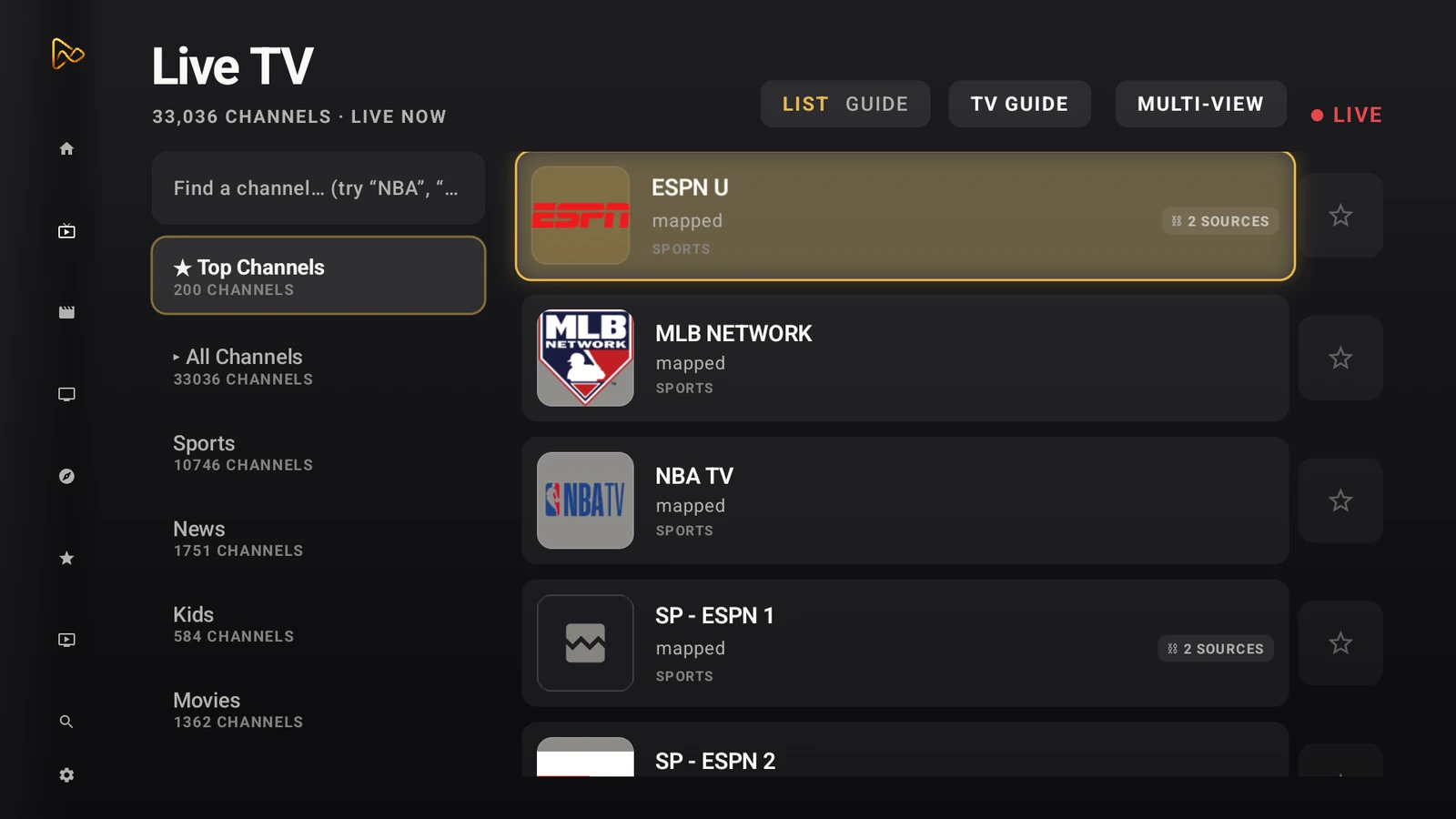
The setup process is straightforward if you have your source URLs ready.
Step 1: Add your primary IPTV playlist. Open MIRA Player, go to your playlist manager, and add your M3U or Xtream Codes playlist. This is your main source and works exactly like any other IPTV player.
Step 2: Add a second playlist or additional sources. If your provider gives you multiple server addresses (common with providers that run redundant servers), add each one as a separate playlist. If you use more than one IPTV provider, add both.
Step 3: Link sources to the same channel. For channels that appear in multiple playlists, MIRA Player's multi-link system recognizes that they are the same channel and groups them. You can also manually link sources if the channel names do not match exactly.
Step 4: Watch normally. When you tune to a channel, MIRA Player plays the first available source. If that source fails, the player automatically rotates to the next linked source. You see a brief loading indicator (one to three seconds), then the stream resumes.
No additional configuration is needed for the failover itself. The player handles detection and rotation automatically.
When auto-failover helps most
Auto-failover is useful all the time, but there are specific situations where it makes a dramatic difference.
Live sports. This is the obvious one. A stream dropping during the final five minutes of a close game is the worst-case scenario for IPTV users. Auto-failover means the stream switches to a working source in the time it takes to blink. You might see a one-second stutter. You will not miss the play.
Peak evening hours. Between 7 PM and 11 PM local time, server load on most IPTV providers peaks. Streams that work flawlessly at noon start buffering or dropping. Auto-failover automatically routes you to whichever server has capacity, so you stop noticing peak-hour problems entirely.
Provider server migrations. Some providers rotate their server URLs weekly or monthly to avoid blocks. If your playlist still points to the old URL, those channels stop working until you update. With multiple sources configured, the old URL fails and auto-failover switches to the new one immediately. You do not even need to know the migration happened.
Multiple TVs or family members watching. If your household has more than one Android TV box running IPTV, and your provider limits simultaneous connections, auto-failover cannot fix a hard connection limit. But if the limit is per-server and your provider runs multiple servers, auto-failover routes each TV to a different server automatically.
Auto-failover vs. buffering fixes
These are different problems with different solutions. It is worth being clear about which one you have.
| Symptom | Problem | Fix |
|---|---|---|
| Stream freezes, error message, black screen, "stream unavailable" | Source is dead or unreachable | Auto-failover (switch to a working source) |
| Stream plays but pauses every few seconds, spinner appears temporarily | Bandwidth or buffering issue | Adjust buffer size, use Ethernet, reduce stream quality, or see our IPTV buffering fix guide |
| Stream takes a long time to start but plays fine once loaded | Initial connection speed or DNS resolution | Change DNS, use a faster DNS provider, or try a wired connection |
| Stream works on phone but not on TV box | Codec incompatibility or hardware limitation | Check codec support on your TV box, or use a player with automatic codec selection |
Buffering fixes (larger buffer, faster DNS, Ethernet cable) optimize a working connection. Auto-failover handles the case where the connection to the source is completely dead and no amount of buffering will bring it back. Both are useful. They solve different problems.
Honest limitations
Auto-failover is not magic. It has real constraints.
It cannot create sources that do not exist. If you only have one IPTV provider and that provider only gives you one server URL per channel, auto-failover has nothing to rotate to. You need at least two sources per channel for it to work. Most providers offer multiple server addresses, but you have to actually configure them.
The switch is not instant. One to three seconds is fast, but it is not zero. During live sports, you might miss a brief moment. It is dramatically better than the 30-120 seconds of manual switching, but it is not gapless.
It does not prevent the initial failure. The first source still has to die before failover kicks in. You will see the failure (black screen, error, freeze) for one to three seconds before the switch happens. Future versions of the technology could potentially monitor source health proactively and pre-connect to a backup before the primary fails, but that is not how current implementations work.
All sources can be down simultaneously. If your provider's entire infrastructure goes offline (not just one server but all of them), auto-failover has nothing to switch to. This is rare but it happens during major provider outages.
Who should care about auto-failover
You will benefit most if:
- You watch live sports or events where missing a moment matters
- You experience stream drops more than once per week
- You have access to multiple IPTV server addresses or multiple providers
- Multiple people in your household watch IPTV on different devices
It matters less if:
- You only watch on-demand content where a 30-second delay to manually switch sources is acceptable
- Your current provider is rock-solid with near-zero downtime (rare, but it exists)
- You only have a single source per channel and no way to get additional ones
The bottom line
Stream failures are the single biggest complaint IPTV users have. They are also largely unavoidable because they are caused by server-side and network-side factors outside your control. Auto-failover is the only technical solution that directly addresses stream death without requiring you to change providers, upgrade your internet, or manually intervene every time.
MIRA Player is the only Android TV player that has this as a native, built-in feature as of 2026. If you are tired of the grab-the-remote scramble every time your stream drops, the combination of multi-source configuration and automatic rotation is the answer.
Frequently asked questions
What is IPTV auto-failover?
Auto-failover is a feature in some IPTV players that detects when a stream has failed and automatically switches to the next available source for the same channel or title, without you touching the remote.
Which IPTV players support auto-failover?
As of 2026, MIRA Player is the only major Android TV player with built-in multi-link auto-failover. TiviMate, Stremio, and Kodi do not have this feature natively. Some Kodi addons approximate it, but it is not a player-level feature.
Does auto-failover fix buffering?
It fixes buffer-related stream death, which is different from temporary buffering. If a stream buffers permanently because the source is overloaded or offline, auto-failover rotates to a working source. It does not speed up a slow but still-playing stream.
Do I need multiple IPTV subscriptions for auto-failover?
Not necessarily. Many IPTV providers offer the same channels across multiple server URLs. You can add those different server addresses as separate sources in MIRA Player. If you have more than one provider, that works too.
How is auto-failover different from load balancing?
Load balancing distributes traffic across multiple servers to prevent any one server from overloading. Auto-failover is reactive: it monitors each source and switches only when the current source fails. MIRA Player uses auto-failover, not load balancing.
Ready to stop chasing dead streams?
Get MIRA Player — $20/year