How to Watch IPTV on Google TV and Android TV Boxes
Everything you need to get live TV running on your Google TV or Android TV box: choosing a player, adding your sources, setting up the EPG, and fixing the common problems that trip people up.

Android TV and Google TV are the most popular platforms for IPTV. The boxes are cheap, the remotes are simple, and the app ecosystem covers every streaming format. But setting up IPTV for the first time can feel opaque if you have never dealt with M3U files, portal URLs, or EPG data.
This guide walks through the full process, from picking a player app to getting your channels loaded with a working program guide.
What You Need Before You Start
- An Android TV or Google TV device. This includes Chromecast with Google TV, Nvidia Shield TV, Walmart Onn 4K, TiVo Stream 4K, and most smart TVs running Android TV or Google TV (Sony, Hisense, TCL, Philips).
- An IPTV subscription or playlist. This usually comes as an M3U URL, an Xtream Codes login (server URL + username + password), or a Stalker Portal URL. Your provider gives you this when you sign up.
- An IPTV player app. The device does not come with one. You need to install a third-party player from the Google Play Store or sideload one.
Step 1: Pick an IPTV Player App
The player app is where you enter your playlist credentials and where you browse and watch channels. Here are the main options:
MIRA Player
MIRA Player handles IPTV, debrid, and torrent sources in one app. It supports M3U and Xtream Codes logins for IPTV. Multi-link aggregation lets you add multiple sources per channel, and if one fails, it automatically switches to the next. Includes a full EPG grid with a live-events rail, family profiles, and a unified watchlist across live TV and movies (catch-up and recording are on the roadmap). $20/year with all features included.
TiviMate
The most popular IPTV player on Android TV. Clean EPG grid, supports M3U and Xtream Codes, catch-up, recording, and favorites. IPTV only (no debrid or movie sources). Premium requires the companion app on your phone for activation. ~$30 lifetime for 5 devices.
Kodi + PVR Addons
The open-source route. Kodi can play IPTV through PVR client addons (IPTV Simple Client for M3U, PVR IPTV Stalker for Stalker portals). Free and extremely flexible, but setup requires installing and configuring multiple addons. The interface is less TV-remote-friendly than dedicated IPTV players.
Step 2: Add Your Playlist
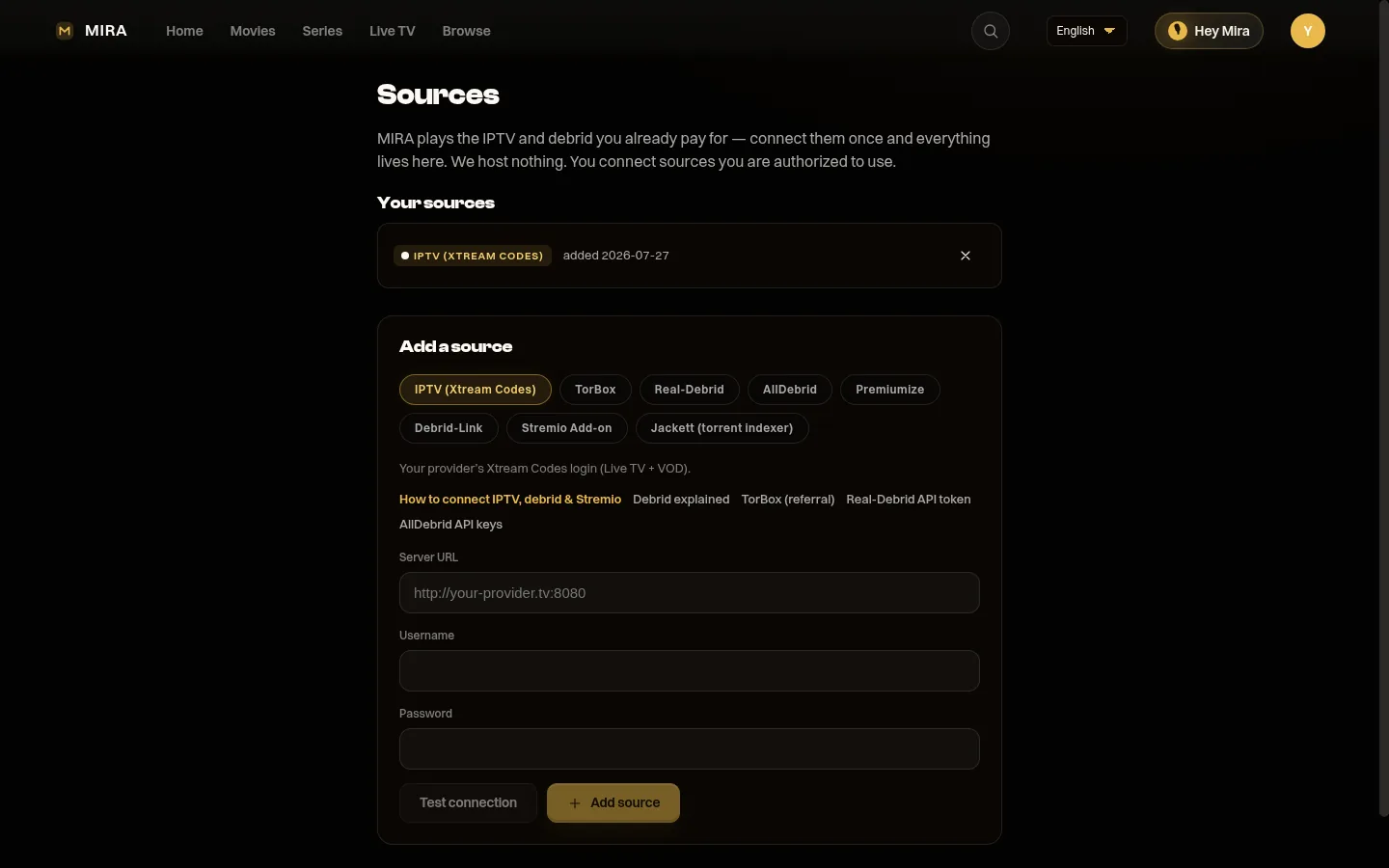
Once you have a player installed, you need to connect your IPTV source. The exact steps vary by app, but the pattern is the same. Here is how the two most common formats compare:
| M3U Playlist | Xtream Codes | |
|---|---|---|
| What you enter | A single M3U URL | Server URL + username + password |
| Live TV | Yes | Yes |
| VOD / series sections | Sometimes (flat list) | Yes (organized) |
| EPG | Often a separate URL | Usually included automatically |
| Best for | Quick setup, single playlist | Full live + VOD + EPG in one login |
For M3U playlists: Open your player's settings, find "Add Playlist" or "Add Source," paste the M3U URL your provider gave you, and wait for the channels to load. This can take anywhere from a few seconds to a few minutes depending on the playlist size.
For Xtream Codes: Enter the server URL, your username, and your password. The player pulls the channel list, VOD catalog, and EPG data automatically.
For Stalker Portals: MIRA Player connects via M3U or Xtream Codes, not Stalker. Most Stalker-based providers can also issue an M3U playlist URL or Xtream Codes login — ask yours for one of those and use it instead.
Most modern players auto-detect the format from the URL or credentials you enter.
Step 3: Set Up the EPG (Electronic Program Guide)
The EPG is what turns a plain channel list into a grid with show names, times, and descriptions. Without it, you just see channel numbers and logos with no indication of what is on.
Most IPTV providers include EPG data with their playlists (especially with Xtream Codes, where the EPG comes in automatically). If your provider supplies a separate EPG URL (usually an XMLTV file), paste it into your player's EPG settings.
Players like MIRA Player and TiviMate download and cache the EPG in the background. The first load takes a few minutes. After that, it updates automatically.

Step 4: Common Problems and Fixes
Channels load but show "no stream available"
This usually means the individual channel link is dead or geo-blocked. In a player with multi-link failover (MIRA Player), you can add a backup source and the app will switch automatically. In players without failover, you need to contact your provider for an updated link or playlist.
The EPG is empty or shows "No Information"
Your provider may not include EPG data, or the EPG source URL may be incorrect. Check with your provider for an XMLTV URL, or look for a separate EPG source online that covers your channel list. Some players can match channels to EPG data from third-party sources.
Buffering or constant loading
Buffering is almost always a bandwidth or provider-side issue, not a player problem. Check your internet speed (you want at least 10 Mbps for HD, 25+ for 4K). Try a wired ethernet connection instead of WiFi if possible. If the problem persists across multiple channels, the issue is likely your provider's server capacity.
The app crashes or freezes
Large playlists (10,000+ channels) can overwhelm players with limited caching. Try enabling "compact mode" or reducing the EPG cache duration in your player settings. If the problem persists, check for app updates or try a different player.
Step 5: Going Beyond IPTV
Once your live TV is running, you might want movies and series too. Most IPTV providers include a VOD section, but the catalogs are often incomplete and the quality varies.
If you use debrid services (Real-Debrid, TorBox, AllDebrid), a player like MIRA Player can connect those alongside your IPTV playlists. Movies from your debrid sources show up in the same library as your live channels, with the same watchlist, the same player, and the same profiles. It eliminates the need to switch between a live TV app and a separate movie app.
Quick Setup Checklist
- Android TV or Google TV device connected to your TV
- IPTV subscription with M3U URL, Xtream Codes, or Stalker Portal credentials
- IPTV player app installed (MIRA Player, TiviMate, or Kodi)
- Playlist added and channels loaded
- EPG configured (auto or manual XMLTV URL)
- Ethernet connection (recommended for stable streaming)
- Backup sources configured for key channels (if your player supports it)
From a blank TV to watching live channels should take under ten minutes with any of the players above. The main variable is how much your provider gives you (working links, good EPG data, VOD catalog) versus how much you need to supplement with additional sources.
If you want a platform-specific walkthrough, see our Google TV setup guide, and if buffering is your main worry, the IPTV buffering fix guide covers the network-side causes. Choosing hardware? Start with the best Android TV boxes roundup.
FAQ
Do I need a separate app to watch IPTV on Android TV?
Yes. Android TV and Google TV do not play IPTV out of the box. You install a dedicated player like MIRA Player, TiviMate, or Kodi, then connect your own playlist or Xtream Codes login.
Does MIRA Player include IPTV channels or a subscription?
No. MIRA Player is a premium player you own and control. You bring your own sources — an IPTV playlist and/or a debrid service like TorBox — and MIRA plays them. It does not sell channels or aggregate streaming accounts.
What is the difference between M3U and Xtream Codes?
M3U is a single playlist URL. Xtream Codes is a login (server URL, username, password) that usually delivers live TV, VOD, and EPG together in organized sections. Most providers offer both.
How much does MIRA Player cost?
$20/year with every feature included — IPTV, debrid, EPG, multi-link failover, recording, and family profiles.
MIRA Player sets up in minutes and handles IPTV, debrid, and movies in one app. Multi-link failover keeps streams alive automatically.
Get MIRA Player, $20/year