How to Watch IPTV on Google TV & Android TV
A practical walkthrough from unboxing to first channel. Covers playlist formats, EPG setup, which player to pick, and the common problems that trip people up.
9 min read
Google TV and Android TV are the same operating system under different branding. Google TV is the newer interface that ships on Chromecast with Google TV, Sony Bravia, TCL, and Hisense smart TVs. Android TV is the older interface found on Nvidia Shield, some Mi Boxes, and earlier smart TVs. Both run the same apps. Anything that works on one works on the other.
Watching IPTV on either platform means installing a player app and giving it your playlist credentials. Here is how to do it properly.
What you need before you start
You need three things:
- An IPTV provider or playlist. This is a service that gives you a channel list, usually delivered as an M3U link, Xtream Codes credentials (a server URL, username, and password), or a Stalker Portal URL. You can also create your own M3U file from publicly available streams if you know the URLs.
- A player app installed on your TV. The TV operating system does not play IPTV by itself. You need a dedicated player. The main options are MIRA Player, TiviMate, and Kodi. We cover how to pick below.
- An EPG source (optional but recommended). An electronic program guide tells you what is playing on each channel now and next. Most IPTV providers include EPG data. If yours does not, you can use a free EPG source like iptv-org.
Installing a player app
On Google TV, open the Google Play Store app on your TV and search for the player by name. On Android TV, the process is the same. If the app does not appear in the TV store, you can sideload it by downloading the APK on your computer and transferring it via a USB drive, or by using a web-to-TV installer like Send files to TV.
For MIRA Player specifically, the app is available on Google Play for Android TV devices. Download it directly from the TV's Play Store.
Connecting your playlist
M3U playlists
An M3U file is a text file that lists stream URLs. Your IPTV provider usually gives you a long URL that ends in .m3u or contains /get.php?username=...&type=m3u_plus. Copy this URL and paste it into your player's playlist setup screen.
In MIRA Player: open the app, go to Settings, select Add Source, choose M3U Playlist, and paste the URL. The app pulls the channel list and starts organizing by category.
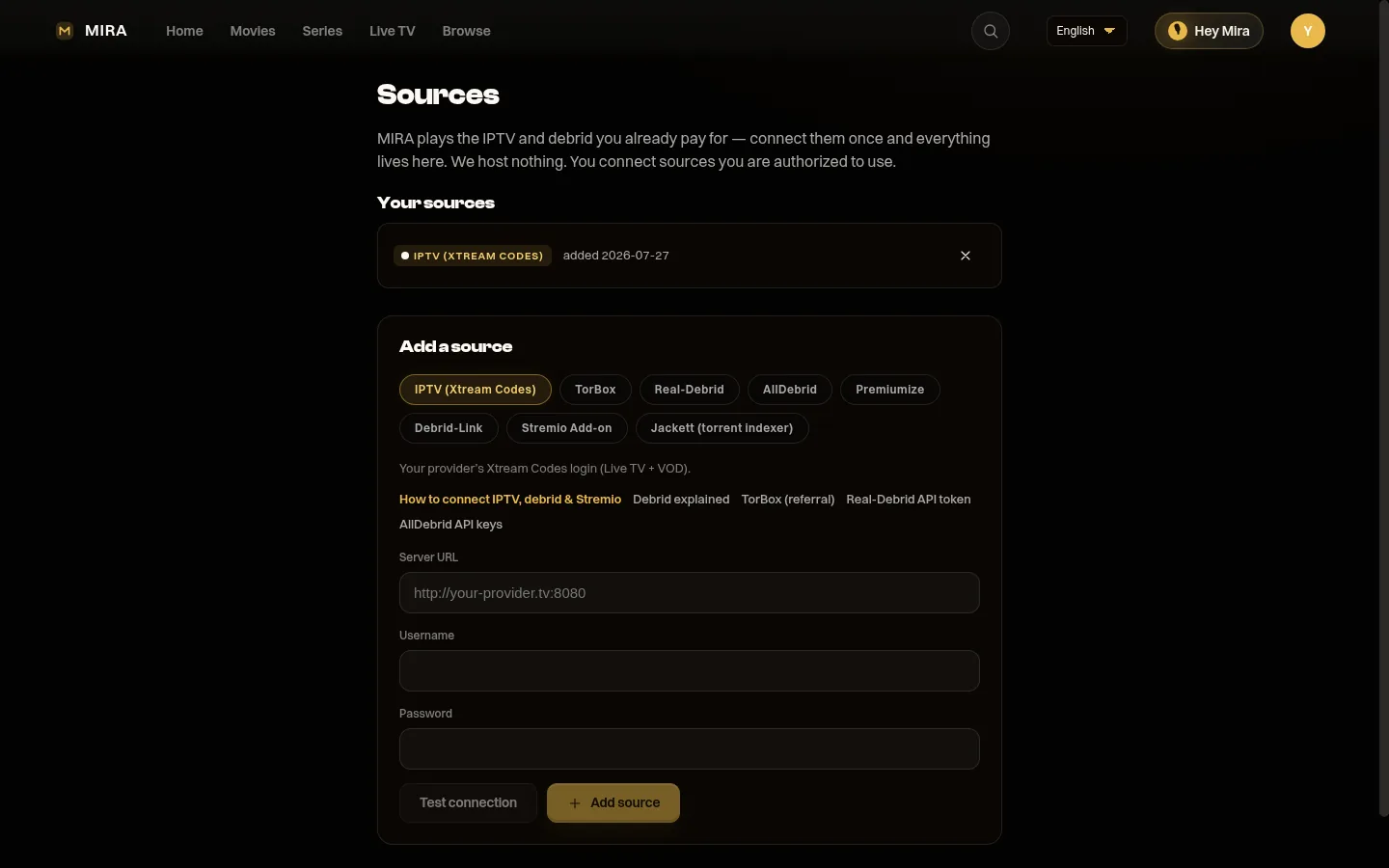
In TiviMate: open the app, select Add Playlist, choose M3U Playlist, and paste the URL. Wait for it to load.
Xtream Codes
Xtream Codes is a server protocol used by many IPTV providers. Instead of a file URL, you get a server address, a username, and a password. This format usually gives you live TV, VOD, and series in separate sections.
In MIRA Player: go to Settings, select Add Source, choose Xtream Codes, and enter your server URL, username, and password. The app connects and populates your content.
In TiviMate: select Add Playlist, choose Xtream Codes, and enter the same three fields.
Stalker Portal
Some providers use Stalker Portal format, which requires a portal URL and a MAC address. TiviMate supports Stalker natively; MIRA Player connects via M3U or Xtream Codes instead — most Stalker-based providers can issue one of those on request, so ask yours and use that login.
Setting up the EPG
If your IPTV provider includes EPG data with their playlist, the player usually loads it automatically when you connect your source. If it does not, or if the EPG is incomplete, you can add a separate EPG source.
Most players accept an XMLTV-format EPG URL. You paste the URL into the EPG settings and the player downloads the schedule data. This can take a few minutes on first load because the file is large.
In MIRA Player, the EPG loads and displays automatically for any connected IPTV source that provides program data. You can also add a custom EPG URL in settings if your provider's data is missing.

Picking a player
| MIRA Player | TiviMate | Kodi | |
|---|---|---|---|
| Live TV + EPG | Yes | Yes | Yes (PVR addon) |
| Movies / debrid | Yes | No | Yes (addons) |
| Multi-link failover | Yes | No | No |
| Setup ease | Easy | Easy | Complex |
| Family profiles | Yes | No | No |
| Price | $20/yr | $33.99 lifetime | Free |
If you only watch live TV: TiviMate is a solid, focused IPTV player with a clean EPG grid. One-time purchase. Hard to go wrong.
If you watch live TV and movies: MIRA Player is the only player that handles both behind one interface. Multi-link failover keeps live streams alive, and the unified home screen means you browse channels and movies in the same place.
If you like to tinker: Kodi is free and can do almost anything through addons, but expect to spend significant time on setup and maintenance.
Common problems and fixes
Channels not loading
The most common cause is an expired or changed playlist URL. Contact your IPTV provider for an updated link, or check your account portal. If you are using Xtream Codes, verify that your username and password are correct.
EPG is empty or wrong
Your provider may not include EPG data, or the EPG URL may have changed. Try adding a separate XMLTV EPG source. In MIRA Player, you can add a custom EPG URL in the source settings.
Buffering
Buffering is almost always a network issue. Connect your TV box to your router with an Ethernet cable instead of Wi-Fi. If that is not possible, make sure your Wi-Fi signal is strong at the TV's location. Close other bandwidth-heavy apps and devices. If the problem persists across all channels, the issue is likely your IPTV provider's server capacity, not your player.
Stream drops during live events
Live sports and events put heavy load on IPTV servers, and individual streams can drop. MIRA Player's multi-link failover addresses this by automatically switching to the next working source link. If you use TiviMate or Kodi, you will need to manually find and switch to a different source when a stream dies.
Going further
Once your IPTV is set up and working, the next step is connecting your other sources. If you use a debrid service like TorBox or Real-Debrid for movies, MIRA Player can connect those alongside your IPTV playlist and surface everything in one content library. The Available On feature then shows where any title can be found across the sources you have connected — your IPTV playlists and your debrid/TorBox account — so you always know which of your own sources has it. MIRA Player is a premium player you own and control; it plays the sources you connect and does not aggregate or stream third-party accounts like Netflix or Disney+.
The point is to get off the couch, not to spend the evening managing apps. One player, every source, press play.
For more, see our broader IPTV on Android TV setup guide, the live sports without cable guide, and the IPTV buffering fix. Picking a device first? Compare the best Android TV boxes.
FAQ
Is Google TV the same as Android TV for IPTV?
Yes. Google TV is a newer interface layered on top of Android TV. They run the same apps, so any IPTV player that works on one works on the other.
Does MIRA Player play Netflix or Disney+?
No. MIRA Player is a premium player you own and control. It plays the sources you connect — your IPTV playlists and your debrid/TorBox account — and does not aggregate or stream Netflix, Disney+, or other third-party subscription accounts.
Do I need an IPTV subscription to use MIRA Player?
You need your own source. That can be an IPTV provider's playlist (M3U, Xtream Codes, or Stalker) and/or a debrid service like TorBox. MIRA Player is the player; you bring the content.
Can I sideload MIRA Player if it is not in my TV's store?
MIRA Player is on Google Play for Android TV. If you ever need to sideload an app, download the APK on a computer and transfer it via USB or a web-to-TV installer.
Set it up once. Watch everything after.
Get MIRA Player — $20/year