Getting Started
New to MIRA Player? Follow these three steps and you'll be watching in minutes.
Subscribe at miraplayer.tv — $20/year or $99 lifetime via Stripe. About 30 seconds.
Connect your sources on the web at miraplayer.tv/app → Sources. IPTV (Xtream / M3U), TorBox, Real-Debrid, AllDebrid, Premiumize, Debrid-Link, or Stremio add-ons. Not on the TV remote.
Watch in the web player, on Google Play for Android TV / Google TV, or with the desktop app. Same account. Sources sync.
Install the App
MIRA Player is on Google Play for Android TV and Google TV. Sideload only if the box has no Play Store.
Standard install (Android TV / Google TV)
Open the Google Play Store on the box and install MIRA Player, or open this link on your phone and send it to the TV: play.google.com/store/apps/details?id=mira.player.tv. New-app search can lag — the direct link always works.
No Play Store on the box? Install Downloader, open it, and enter miraplayer.tv/apk.
Open MIRA Player, sign in with your email, and select your profile. Connect sources once on the web if you have not already.
Web · iPhone · iPad
No install. This is the Apple path until native iPhone / Apple TV apps ship.
Open miraplayer.tv/app in any modern browser, including Safari on iPhone and iPad.
Sign in with the same account you used at checkout. The login link is emailed or texted after Stripe.
Connect sources once here. Continue Watching follows you to the TV app and desktop.
Mac · Linux · Windows
Same account as TV and web. Downloads: /get.
Mac (Apple Silicon): download the signed, notarized DMG. Open it, drag to Applications, launch. Gatekeeper should show Developer ID / Notarized. Intel Mac still uses the unsigned zip.
Linux: download the x64 AppImage,
chmod +x, then run it. Play-tested.Windows: unzip and run
MIRA Player.exe. SmartScreen will warn once because the zip is unsigned. More info → Run anyway.
Fire Stick Installation
Fire Stick requires one extra step to allow sideloaded apps.
Go to Settings → My Fire TV → Developer Options.
Turn on Install Unknown Apps. Then find Downloader in the list and enable it.
Go back to your home screen and find Downloader in the app store. Install it if you haven't already.
Open Downloader and enter this URL exactly: miraplayer.tv/apk (redirects to the latest APK. Do not use
/dlalone.)Download the APK, tap Install when prompted, then tap Open when it finishes.
Sign in with your MIRA Player account credentials.
Connect Your Sources
Sources are how MIRA Player gets your content. You add them once on the website — they sync to every device automatically.
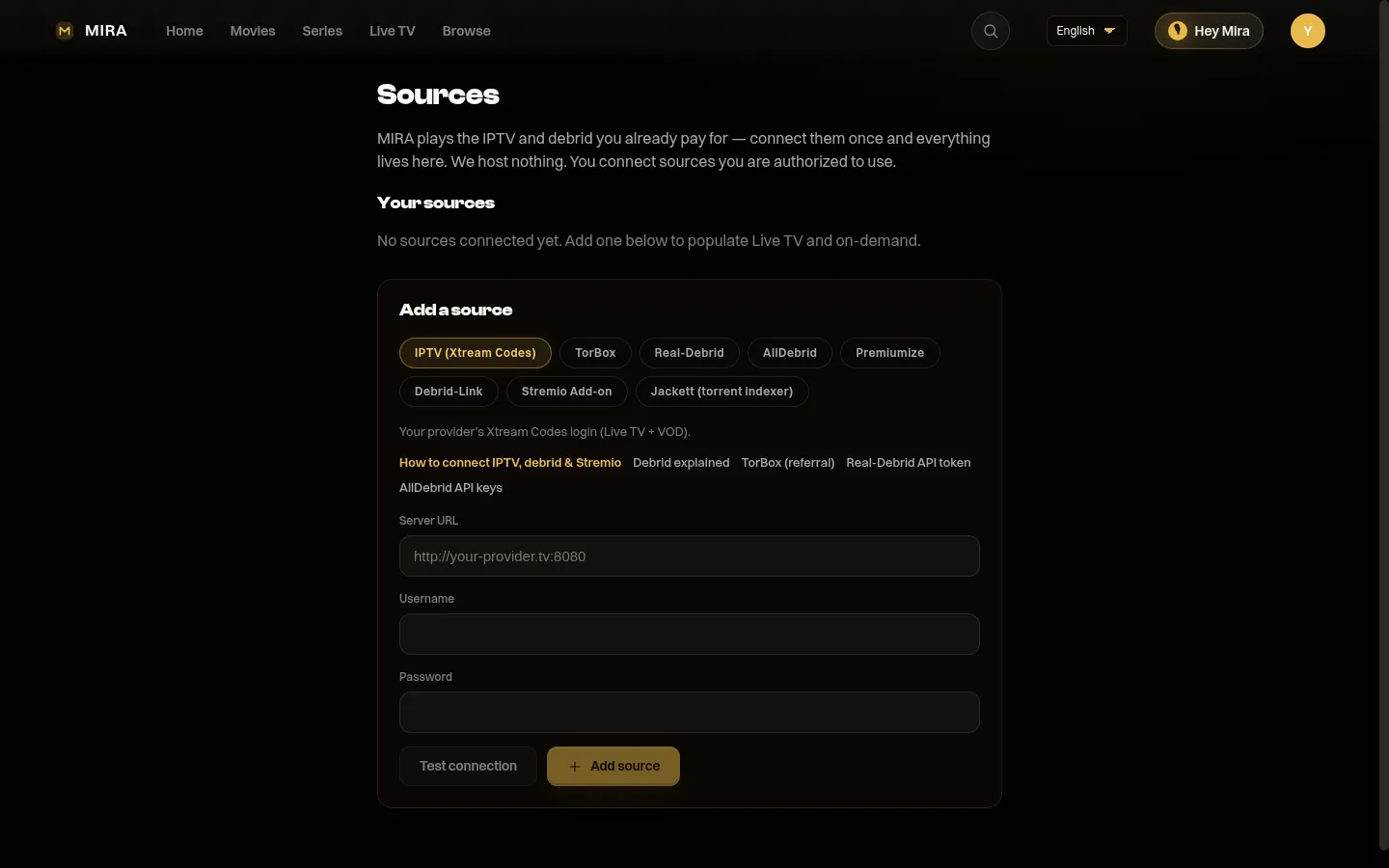 See it: the Sources page with every source type MIRA connects — full connect walkthrough
TorBox (easiest all-in-one debrid path)
Go to torbox.app/settings (signed in), copy your API key.
Go to miraplayer.tv/account → Sources → TorBox and paste the key.
Click Save. Your TV app and web player use TorBox on the next resolve.
Other debrid services (same pattern)
Prefer a different debrid? Paste that provider's API key the same way on the account page. Dedicated setup pages:
IPTV Provider (Live TV + VOD)
Get your Xtream Codes credentials from your IPTV provider — you'll need the server URL, username, and password.
Go to miraplayer.tv/account and enter them in the IPTV section.
Click Test to confirm they work, then Save.
Stremio add-on
Optional. A Stremio add-on URL becomes one more source in the same player. Setup:
Movies & Shows
Browse and play from a catalog powered by MIRA's own catalog and semantic engine, resolved through your connected sources.
From the home screen, browse the Movies or Shows tab, or use Search.
Select a title to open the detail page. Press Play to start automatically, or select a source if you want to choose the quality manually.
MIRA Player tries TorBox first (highest quality), then falls back to your IPTV VOD library if TorBox doesn't have the file.
Your watch progress saves automatically. Come back later and tap Continue Watching to pick up where you left off.
Live TV
Browse your IPTV provider's full channel lineup, organized by category.
Select Live TV from the bottom navigation bar.
Browse channels by category (Sports, News, Movies, etc.). Use the category tabs at the top to filter.
Press a channel to start watching. The player shows the current and next program in the header.
Open the Guide to see the full EPG (Electronic Program Guide) with upcoming shows.
Watchlist & History
Keep track of what you want to watch and what you've already seen.
Save to My Stuff — On any detail page, press the bookmark icon to add the title to your watchlist. Access it from the home screen under My Stuff.
Continue Watching — Titles you've started appear on your home screen. MIRA resumes from the exact point you left off.
History — Completed titles and recently watched content appear in the History section of the app. Each profile has its own watch history.
Family Profiles
One MIRA Player account supports multiple family members, each with their own watch history and watchlist.
When you open the app, you'll see the profile picker. Select your profile or tap Add Profile.
Each profile has its own Continue Watching, My Stuff, and watch history — completely separate from other profiles.
Kids mode — Enable Kids mode on a profile to get a simplified interface and restrict adult content. Set a PIN under Settings → Parental Controls.
Settings
Customize MIRA Player from the Settings screen (accessible from the bottom nav bar).
- Content Language — Pick your preferred audio language (English, Spanish, French, etc.). MIRA Player will always try to serve content in your language first.
- Parental Controls — Set a PIN to lock specific content categories. Kids mode restricts navigation to family-friendly content.
- My Services — Enable the streaming apps you already subscribe to so MIRA can show a shortcut on the detail page that deep-launches the right app directly. MIRA points you to it; your own subscription does the playing.
- Motion — Enable or disable animated transitions if you prefer a static interface.
FAQ & Troubleshooting
Quick answers to the most common questions.
Contact Support
Can't find your answer here? We're happy to help.
Tell us what's wrong and smart diagnostics start right away. We answer every email, usually within one business day. Include your account email and a brief description of the issue.