How to install MIRA Player on an onn Google TV box
Unbox to first channel on the onn. Google TV 4K, our reference device. This page is the install and first run; the blog covers which player and which model to buy.
Last verified:
On an onn. Google TV box, open Google Play from the home screen, search for MIRA Player, install it and sign in. The onn. Google TV 4K streaming device is our reference device and needs no sideloading. Then add your own M3U, Xtream, debrid or Stremio add-on sources from a phone or computer, not the remote, and open Live TV. MIRA Player is a player only: no channels or content are included. It costs $20 per year or $99 lifetime.
onn steps, in order
- Finish the onn setup. Complete the onn. Google TV first-time setup with Wi-Fi (or Ethernet on models that have a port) and your Google account, so the Play Store opens normally.
- Open Google Play and search MIRA Player. Open the Play Store app from the home screen, search for MIRA Player and open the listing. If search lags on a new listing, open the Play listing on your phone and send it to the onn.
- Install and open. Select Install, then Open. No sideloading or developer options are needed on an onn.
- Sign in and pick a profile. Sign in with your MIRA account email and select your profile.
- Open Live TV and choose Add sources. With no sources yet, Live TV shows a "MIRA is just a player" screen with an Add sources button. Adding sources is easiest on the web at miraplayer.tv/app/sources, so use a phone or computer for the next part.
- Add a source on the web. On your phone or computer open miraplayer.tv/app/sources, sign in with the same account and add your own source. M3U needs a Playlist URL, Xtream needs Server URL, Username and Password, debrid needs an API key. Copy the key from your debrid provider's account page, treat it like a password and keep it out of screenshots. Press Test connection, then Add source.
- Back on the onn, open Live TV or Home. Give the first sync a moment. Saving a playlist does not prove that every channel plays, because availability depends on your provider and your network.
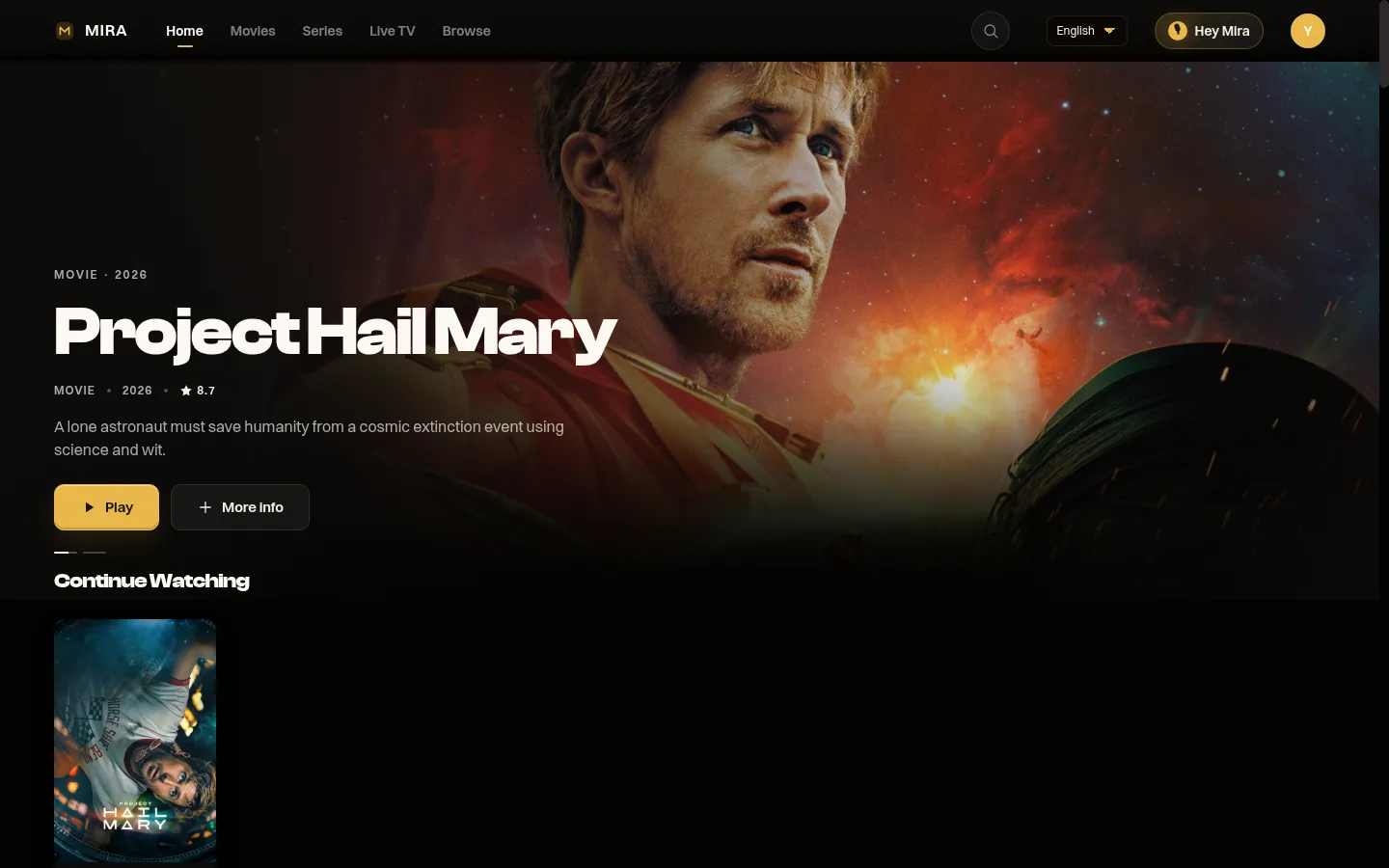
What to expect on first run
- Before you add sources: the Home screen shows demo trending rows, not your content, and Live TV shows the "MIRA is just a player" screen with an Add sources button. Both are normal. The app has no content of its own.
- Guide: Live TV shows a program guide and now/next, but guide data comes from your provider and is partial, not complete.
- Debrid on its own: a debrid key adds on-demand sources. It does not add live TV channels; live TV needs an IPTV playlist or Xtream login. Whether a given title plays depends on your debrid account and your network.
- Nothing appears after adding a source: wait for the first sync, press Test connection again on the web and check that the account on the TV is the one you added the source to.
Not sure this is the right box?
The onn Google TV IPTV player guide covers which onn model to buy and how MIRA Player compares with other players. For other Google TV hardware use the general Google TV page. To update or remove the app later see update and uninstall.
MIRA Player hard facts
Checked 2026-10-28. Source of record: miraplayer.tv/facts/.
- This device: onn. Google TV 4K streaming device: installs from Google Play and is our reference device.
- Price: $20 per year or $99 one-time lifetime. No trial period. 7-day refund on web purchases, lifetime included.
- One app: Your own IPTV (M3U and Xtream Codes), debrid (TorBox, Real-Debrid, AllDebrid, Premiumize, Debrid-Link) and Stremio add-ons in one catalogue, with watchlist, search and Continue Watching.
- Guide: Live TV with a program guide and now/next. Guide data comes from your provider, so coverage varies by source and is not complete. No catch-up. No recording.
- Sources: Bring your own. MIRA Player includes no channels, movies or streams.
- Available now: Android TV and Google TV (Google Play, Android 7 or newer). Android phone and tablet: Google Play (listing ID mira.player.tv). Fire OS by sideload (not Vega OS). Web player at miraplayer.tv/app, including Safari on iPhone and iPad.
- Early access: Desktop build 0.1.2 for Mac (Apple Silicon), Windows x64 and Linux x64 at miraplayer.tv/get.
- Not available: Native iPhone or iPad app, Apple TV, Roku.
- Multiview: Web player only, up to four streams, device-limited.
Questions people ask
How do I install MIRA Player on an onn Google TV?
Open Google Play on the onn, search for MIRA Player, install it and sign in. No sideloading is needed on an onn Google TV device.
Do I need Downloader or an APK on the onn?
No. The onn. Google TV 4K installs MIRA Player from Google Play. Downloader is only a fallback for a box with no usable Play Store.
Why do I see only demo rows and no channels after I sign in?
MIRA Player includes no channels, movies or streams. The demo rows are not your content. Add your own sources on the web at miraplayer.tv/app/sources, then reopen the app.
Do I type my playlist URL with the onn remote?
You do not have to. Live TV has an Add sources button, but a phone or computer at miraplayer.tv/app/sources is much easier than a remote. Use the same account.
Does the onn work with debrid and Stremio add-ons?
Yes, when you bring your own accounts: Real-Debrid, TorBox, AllDebrid, Premiumize and Debrid-Link keys, plus Stremio add-ons. Debrid alone does not provide live TV channels.
MIRA Player is a media player. It provides no channels, movies or content.